
Open TV Menu#
Target
- Point the remote at the TV near you and press the “Open TV Menu” button.
Command
- If you're near a TV, you can turn it on using /tv.
Change TV Place Buttons#
How can i do that?
- To do this, go to the wais-tv/config.lua file
- Go to the
Config.PlaceOptionstable, find the button you want to change, and then replace it with the new key. The F1–F12 keys and other function keys cannot be used.
Delete TV After Player Quit#
How can i do that?
- To do this, go to the wais-tv/config.lua file
- Find the
Config.DeleteTvWhenOwnerQuit = falsevariable and change its value fromfalsetotrue. - Now, when players leave the server after placing one or more televisions, the televisions will be removed.
Job Integration#
TV Items
- To do this, go to the wais-tv/config.lua file
- Go to the
Config.UsableItemstable and select the TV you want to link to the job as an item. - Add the following variable to this TV table.
["job"] = {"your_job_name", "your_other_job_name", --[[etc...]] },
- The final result should look like this:
["tv_flat_screen"] = {
   ["model"] = "prop_tv_flat_01_screen",
   ["screen"] = "tvscreen",
   ["job"] = {"police", "ambulance"},
   ["label"] = "Flat Screen TV [20m]"
},
Default TV Jobs/Groups
- To do this, type the /tvadmin command.
- Go to the “Default TV” category and click “Create TV”
- After configuring the TV settings, go to the “Jobs/Groups” section.
- Note**: **The “Controlable” option must be selected for this.

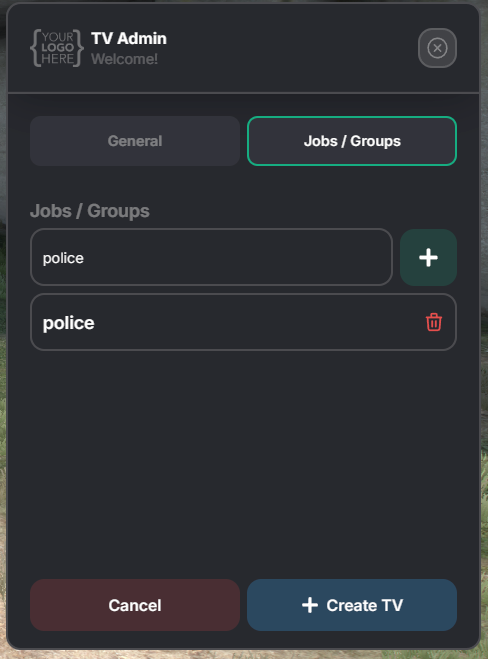
All jobs will be listed in QBCore and Qbox. In ESX, job names must be entered manually.
Change TV Distance#
- You cannot change the rendering and video distance for televisions.
- This data is not defined manually anywhere in the script; it is retrieved automatically from GTA Base.
- The rendering area of televisions is equal to the LOD distance.
How can i use TV Items#
- After adding the TV items to your inventory, equip them.
- After clicking the “Use Item” option, the TV prop will spawn in front of your character.
- Use the W key to move along the X, Y, and Z axes.
- Use the R key to adjust the X, Y, and Z rotation around its own axis.
- Press the E key to complete the process.
A lot of things aren’t working properly / Distance Etc.#
- If you're using AntiCheat scripts like Waveshield or Fiveguard, you need to register the wais scripts.
- You'll usually encounter errors such as: “Distance Check,” “You're Not in the Car,” or “You're Not in the Area.”
There are no more available yet, please open a ticket if the topics here are not suitable for what you are looking for.
Who developed it / How can I get help#
You can recognise our script developers by the short names of the script. Scripts with short name ‘Wais’ are made by Ayazwai.
You can visit our Discord address to ask questions in your mind / To get support