
The roster gives a persistent framework character identity1 a role in one restaurant. An administrator permission and a staff membership serve different purposes.
Open and edit the roster#
- Select the correct restaurant.
- Open Staff Roster in the management rail.
- Click Hire. In Hire Employee, choose the online player through Nearby Employee / Choose an online player. If needed, Custom Source ID accepts that online player's numeric server ID.
- Choose the role and active state required for their work.
- Accept the roster change, Save draft, then Publish.
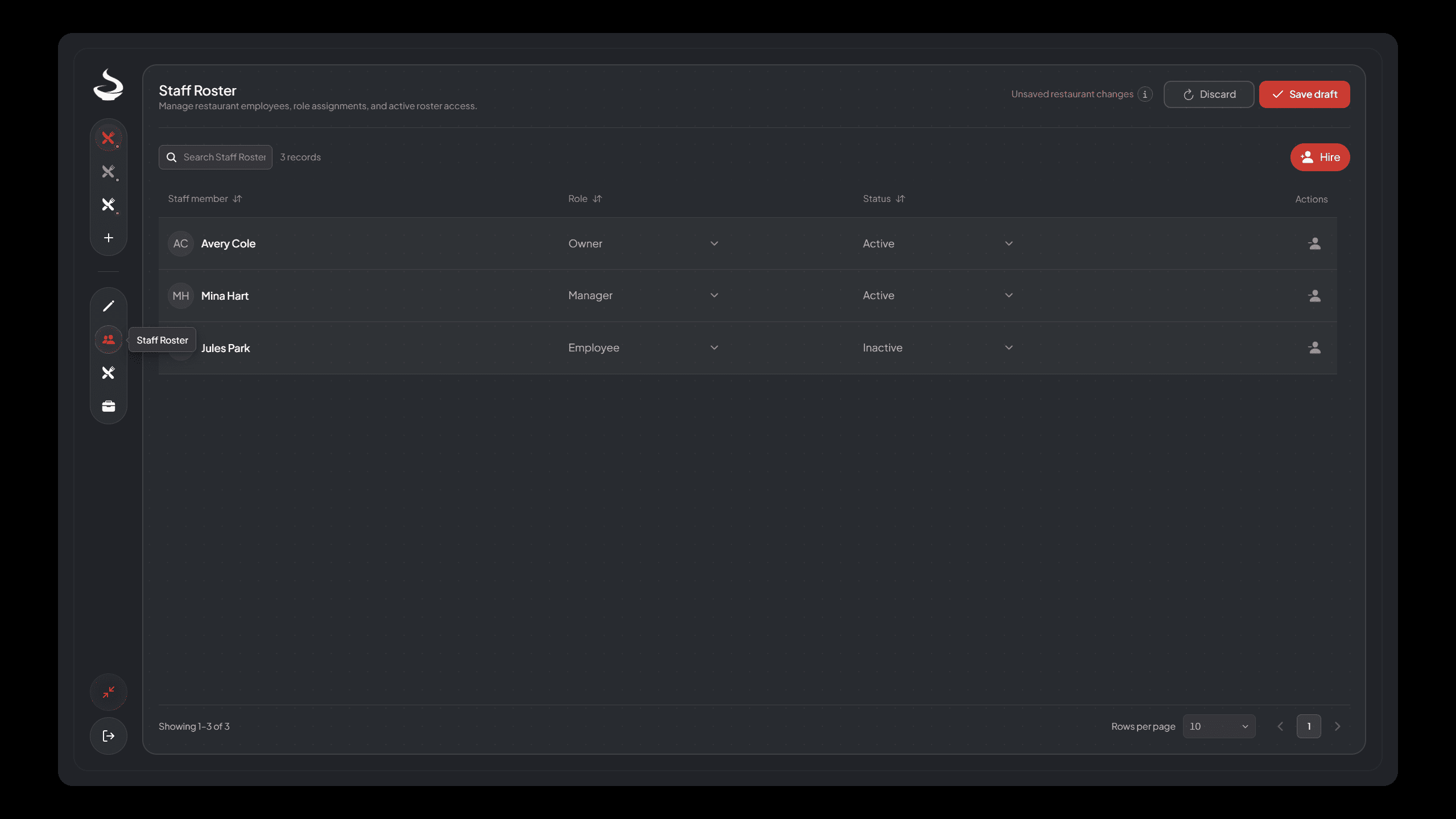
Staff Roster showing restaurant memberships, character identifiers, roles and active status.
The server resolves the selected online player to their loaded framework character and saves that persistent identity. Custom Source ID is a player-selection input, not the saved membership identity. Do not type a character identifier or license into that field. Check the resulting row and ensure the employee returns with the same character.
Choose the role by the work#
| Capability | Global admin | Active owner | Active manager | Active employee |
|---|---|---|---|---|
| Create restaurants | Yes | No | No | No |
| Configure this restaurant and roster | Yes | Yes | No | No |
| Open business operations and handle orders | Yes | Yes | Yes | Yes |
| Read financial summary | Yes | Yes | Yes | No |
| Read detailed finance / change pricing / banking | Yes | Yes | No | No |
| Physical fixed-kitchen work and storage | Needs actual active staff membership | Yes, subject to live checks | Yes, subject to live checks | Yes, subject to live checks |
An owner should be the person trusted with configuration and money. Manager2 suits shift operation and summary reporting. Employee3 suits cooking and order handling. Do not promote somebody to owner just to fix a misplaced station or unpublished roster change.
Active state and publication#
A role alone is insufficient for physical staff work. The membership must be active in the published configuration4 and accepted by current server checks. A roster change waiting in the draft does not immediately change the live kitchen.
After you publish a staff change, the new permissions apply. Removing access can close the employee's current interaction and clear carried preparation. Shared station food follows its normal retention rules; changing a role does not return ingredients.
Test a new employee#
After publication, ask the employee to use their intended character, approach a placed published station and start the appropriate action. For storage, approach the published Packaging Point and open Storage. The server still checks distance, world instance, restaurant activation and compatible hands.
An employee who can see another player's food has not necessarily received staff access: nearby public food visuals do not grant interactions.
Removing or changing access#
Edit or remove the membership, then save and publish. Review the restaurant's remaining ownership before removing an owner. A person holding previously issued finished food can still consume it under the inventory-use rules; consumption is not limited to current staff.
If access fails, check effective role, active state, selected character and publication first. Use Permissions for ACE access and Kitchen Problems for action access checks.
Footnotes
-
The framework character identifier used to bind ownership, staff membership, payments and orders. Read the definition. ↩
-
An active staff role that can operate the kitchen, handle orders and read financial summaries. Read the definition. ↩
-
An active staff member who can cook, use authorized storage and handle restaurant orders. Read the definition. ↩
-
The saved restaurant setup currently used by gameplay. Read the definition. ↩