
Create a material1 when you need an ingredient or output that your restaurant does not have yet. This example adds Red Pepper, with the logical code red_pepper and the unit Gram.
By the end, you will have a saved material definition you can select in recipes or Supply offers. You will still need to configure those recipes or offers to produce or buy the ingredient.
The screenshots show the Materials list and a new material form. Follow the Red Pepper values in this guide; your restaurant's existing materials may differ.
Before you start#
- Install and start Restaurant and its dependencies.
- Create a restaurant first. This guide uses the sample restaurant Copper Spoon.
- Use a global Restaurant administrator account or the restaurant's owner account. An employee or manager role alone does not grant configuration access.
- Open the panel with
/restaurant, or the key configured on your server.
1. Open Materials#
Select your restaurant in the left rail. Expand Kitchen, then open Materials. Click Add material above the list.

Open Materials and choose Add material. This screenshot shows the list before adding Red Pepper.
You do not need to create Red Pepper again if this restaurant already has it. Search the list first. The name under each label is its logical item code.
2. Fill in the required fields#
Enter the following values:
| Field | Example value | What you are choosing |
|---|---|---|
| Item Label | Red Pepper | The readable name shown to users. |
| Item Name | red_pepper | The unique logical code recipes use within this restaurant. |
| Unit | Gram | The measure for recipe and Supply quantities. |
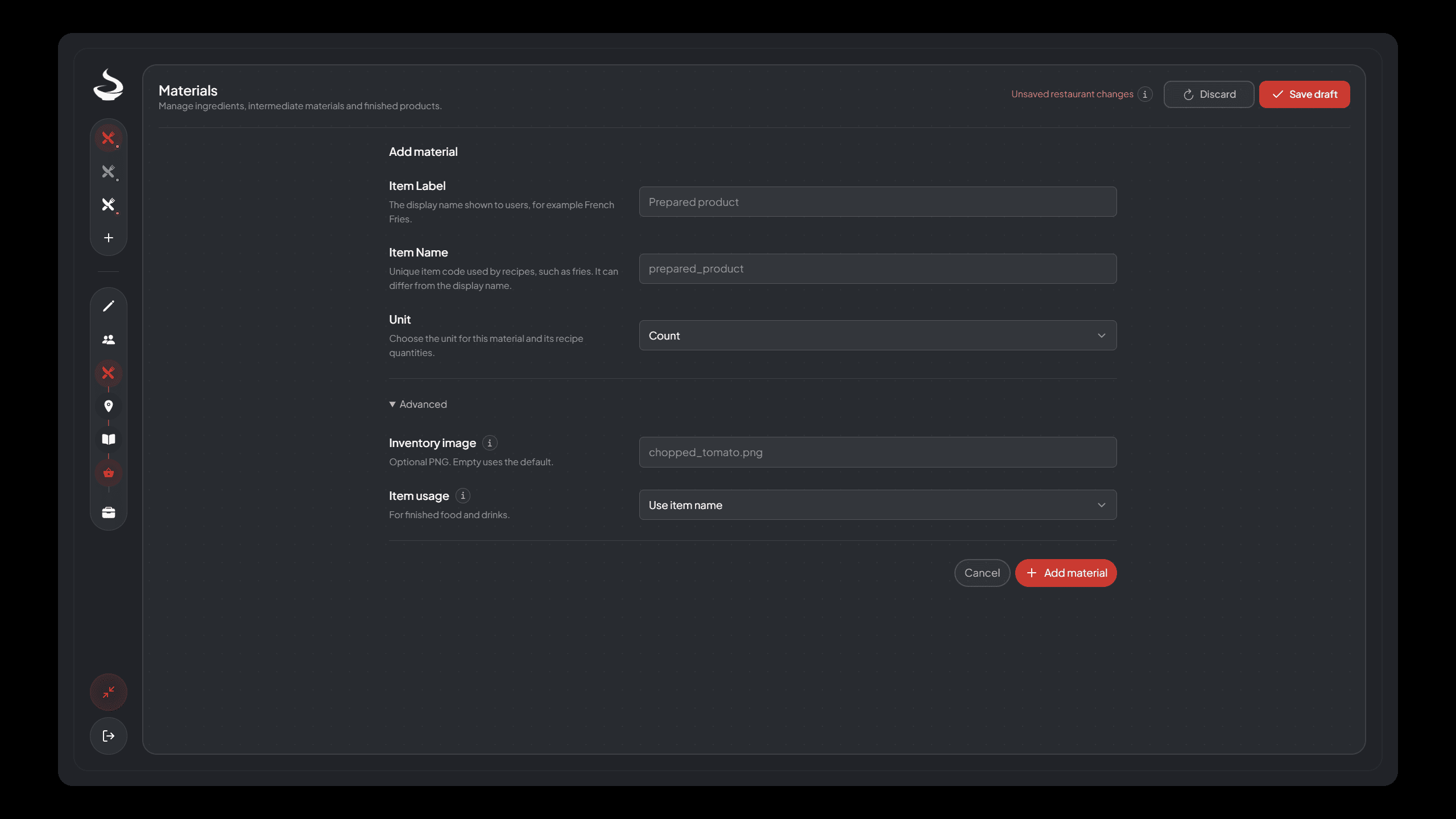
The new form starts with Count selected. Enter Red Pepper and red_pepper, then change Unit to Gram using the table above.
The gray Prepared product and prepared_product text shows placeholder examples, not saved values. Type your own label and code into those fields.
Item Label can contain spaces and readable capitalization. Use Red Pepper rather than showing the technical code as the label.
Item Name is a logical item code2. Start with a letter and use lowercase letters, numbers, underscores, or hyphens. Avoid spaces. The editor normalizes uppercase letters to lowercase. Keep this code unique within the restaurant, even if two materials have similar display labels.
You do not add red_pepper to your inventory resource's item list. Restaurant stores ingredient packets through the shared restaurant_material inventory item and keeps the ingredient's details in metadata.
Choose the unit#
The unit3 belongs to the material definition. You enter the amount later in a recipe or Supply offer.
| Unit | Example | How to read a quantity |
|---|---|---|
| Gram | Red Pepper | 100 means 100 g. |
| Kilogram | A bulk ingredient | 0.5 means 0.5 kg. |
| Milliliter | A liquid ingredient | 100 means 100 ml. |
| Liter | A bulk liquid | 0.5 means 0.5 L. |
| Count | Individual pieces or finished servings | 1 means one piece or serving. |
Use Gram for this example. A finished-product output in a custom recipe requires Count. Adding a Count material alone does not make it an edible finished product; the recipe output role and item usage setup determine that behavior.
3. Check Advanced settings#
Expand Advanced to see Inventory image and Item usage. For the Red Pepper ingredient, leave Inventory image empty and keep Item usage at Use item name.
The form screenshot shows Advanced expanded. These optional fields can stay at their initial settings for this ingredient.
The faint chopped_tomato.png text is a placeholder example. The Inventory image field stays empty until you type a filename.
Inventory image#
An inventory image4 is an optional PNG filename, such as red_pepper.png. The operator must install that file in the selected inventory's image directory. The field does not upload an image, accept an image URL, or create a PNG.
For the example, leave this field empty. Restaurant uses the normal material artwork, restaurant_material.png, for material packets. A finished product keeps its existing variant or default image when you leave the override empty.
If you add a custom image later:
- Prepare a lowercase PNG filename using letters, numbers, underscores, or hyphens.
- Install it in the inventory's image folder, normally
ox_inventory/web/imagesorqb-inventory/html/images. - Enter its filename in this field. You may include or omit
.png. - Save and publish the draft to apply the selection to newly issued outputs.
Your inventory must support metadata-selected images for per-material artwork. Stock QB inventories keep the fixed image from their inventory item definition. Items already issued keep their stored image selection. If the image appears in inventory but not in Restaurant's packaging panel, include the filename and a screenshot when contacting support.
Item usage#
An item usage profile5 controls how a finished food or drink is held and consumed. The server's configured profiles populate this selector. You do not create a new profile by typing a name in the material form.
Leave Use item name selected for this raw ingredient. For a custom finished food or drink, choose an appropriate enabled profile. If you keep Use item name, the produced item uses its logical item name as the profile key. A missing or disabled matching profile prevents consumption. It does not create a new profile automatically.
4. Return to the Materials list#
Click Add material at the bottom of the form. The editor adds Red Pepper to the local draft6.
The form clears its fields and shows Material added. You can add another or return to materials. This lets you enter another material. Click Done adding materials to return to the list.
After returning to the list, look for the new row. The header still says Unsaved restaurant changes. Check the following values:
- Item label: Red Pepper, with
red_pepperunderneath. - Status: Draft, because you have not published this definition yet.
- Unit: Gram.
- Material usage: 0 records, because no recipe or Supply offer references it yet.
Material usage counts references. It does not show how much Red Pepper a player owns. Click its count to inspect the referencing records when you add those later.
5. Save the restaurant draft#
Click Save draft7 in the page header. A successful save persists the restaurant's draft on the server. It does not activate these changes in game.
The header should show Draft saved and Draft saved. Publish to apply these changes in game. The main button now reads Publish.
The Add material form action and Save draft serve different purposes:
| Action | Result |
|---|---|
| Add material | Add the form's values to the local restaurant draft. |
| Save draft | Persist the restaurant draft on the server. |
| Publish | Activate the latest saved configuration after server validation. |
6. Publish the saved changes#
The required result of this material-only guide is the saved draft. To put the material into gameplay, complete the restaurant's recipes, required placements and access setup first. Follow First Custom Production for a full Manual kitchen. Review the complete saved setup, then click Publish8.
Publish activates the saved restaurant draft, including other pending changes. Changes to kitchen recipes, material policies, or production placement can reset that restaurant's temporary production. Check the whole draft before publishing on a live server.
After successful publication, the header shows Published and The latest saved changes are published. Red Pepper's row also shows Published. Normal material changes require no resource restart.
If Publish is unavailable or the server rejects it, check the reported setup problem. Active recipes, staff, and required world placements must satisfy the restaurant's publication checks. You can keep a saved draft while completing setup.
What happens to quantity?#
The Materials form contains no starting stock field. It defines what Red Pepper is and which unit it uses.
When you configure a Supply offer for 250 g, one purchase gives one packet9 holding 250 g. If a recipe then uses 100 g, 150 g remains in that packet. Adding or publishing the material definition alone does not give that packet to anyone.
Fix a problem#
| What you see | What to check |
|---|---|
| You cannot edit Materials. | Use the restaurant owner or a global Restaurant administrator. Staff membership alone does not grant configuration access. |
| The material is rejected. | Fill Item Label and Item Name. Check the code format and confirm that the restaurant has no other material with that Item Name. |
| The form becomes empty after Add material. | Look for the success message. The editor has prepared the form for the next material. Click Done adding materials to return. |
| Item Name or Unit cannot change on an existing material. | Check Material usage. Recipes and Supply offers that reference the material protect its identity and unit. |
| An inventory image is rejected or missing. | Use a local PNG filename, install the matching file, and check the inventory's metadata-image support. A typed filename does not upload an image. |
| A new Count item cannot be eaten or drunk. | Configure it as a finished-product recipe output and select a matching enabled item usage profile. |
| The row still says Draft after saving. | Save draft persists the edit. Publish activates it. Check the restaurant header for the current stage. |
| Changes do not appear in game. | Save draft, complete any reported setup requirements, then Publish. |
What to do next#
Select Red Pepper as an input or intermediate output in a recipe, or add an offer at a Supply point so active staff can buy it. Enter amounts in Gram, because that is the unit you chose for this definition. Save and publish those new gameplay changes when you have completed their setup.
Use the glossary index to look up another term.
Footnotes
-
A restaurant definition for an ingredient or output. Creating it gives no stock. Read the definition. ↩
-
The unique logical recipe code within this restaurant, for example red_pepper. Read the definition. ↩
-
The measure used for this material's quantities. Gram makes 100 mean 100 g. Read the definition. ↩
-
An optional installed PNG filename for inventory artwork. Read the definition. ↩
-
Configured holding and consumption behavior for a finished food or drink. Read the definition. ↩
-
Changes in the current editor. Use Save draft to persist them on the server. Read the definition. ↩
-
Persist the restaurant draft on the server while the existing published configuration stays active. Read the definition. ↩
-
Activate the latest saved restaurant draft after the server validates its setup. Read the definition. ↩
-
One inventory item containing a logical ingredient amount, such as 250 g. Read the definition. ↩