
Physical Storage requires active published staff membership, an enabled restaurant and a placed Packaging Point. A global administrator still needs that staff membership for physical access. Open Packaging Point > Storage; only eligible finished products and delivery bags belong here.
Use product storage1 to keep finished stock for the restaurant. Open it at the published Packaging Point rather than through another inventory's stash command.
Before opening#
You need actual active staff membership, an enabled published restaurant, proximity to its packaging point2 and a ready supported inventory bridge. Global administrator permission alone does not waive those physical staff checks.
1. Open Storage#
Approach Packaging and choose Storage. The left side shows Restaurant stock; the right shows eligible items in your inventory. Select an item to inspect its contents, state and transfer action.
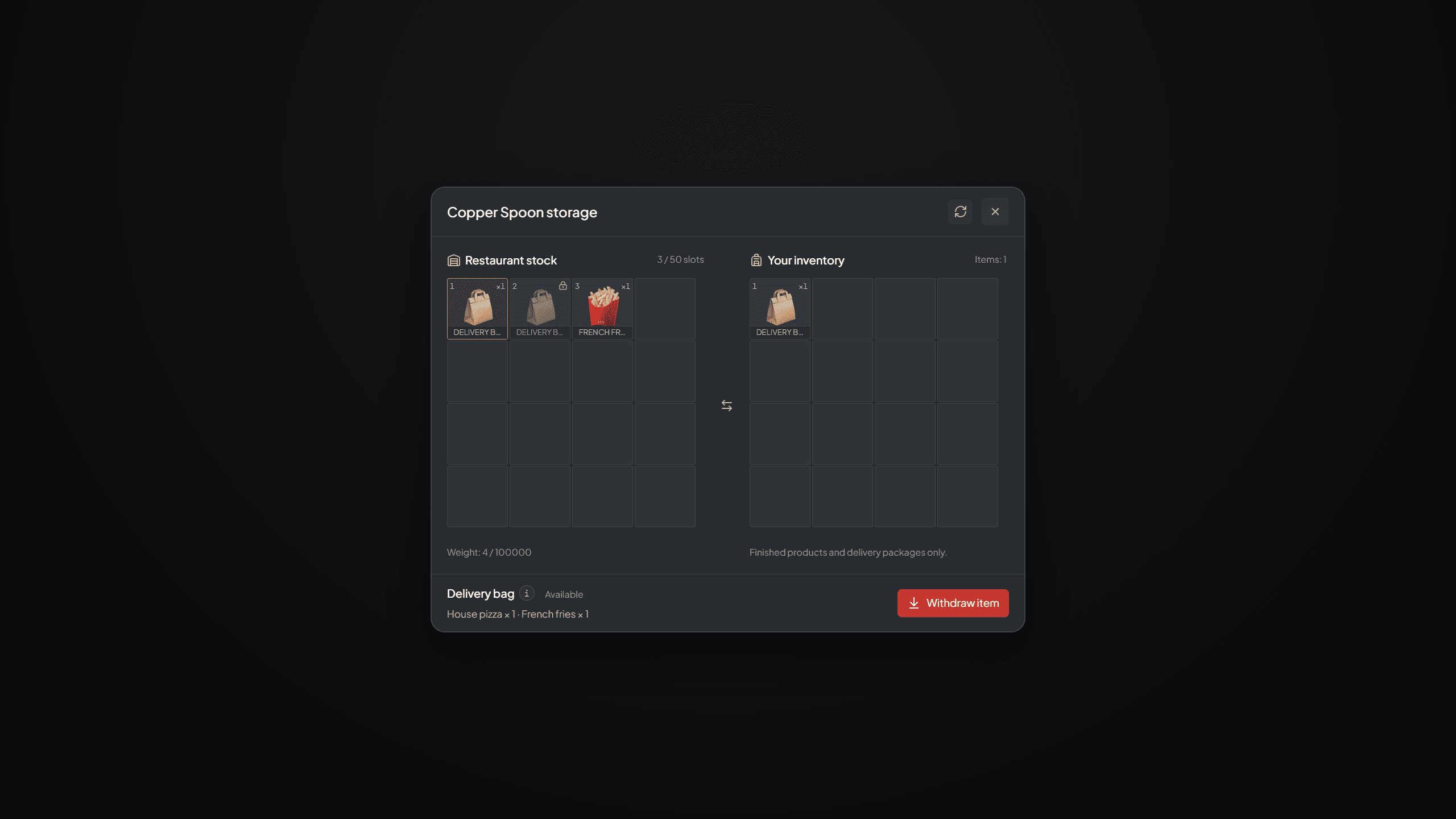
Restaurant Storage with restaurant stock on the left, player inventory on the right and a selected bag withdrawal action.
The screenshot includes a locked/reserved bag. A visible stock entry can be unavailable because it belongs to an order or an operation under review. It is not necessarily missing or duplicated.
2. Deposit finished stock#
Select an eligible finished product or delivery bag from Your inventory, read any deposit error and use the offered deposit action. Wait for the confirmed result, then inspect the updated stock and your actual inventory.
Store finished products and eligible delivery bags here. Raw materials and unfinished food do not count as finished stock. Bags from another restaurant, already delivered bags and items waiting for transfer review cannot be deposited.
An unassigned bag can move between active employees of the same restaurant and still be deposited when current possession is verified. Order-linked bags follow their stricter custody/state rules.
3. Withdraw available stock#
Select an available Restaurant entry and use Withdraw item. One inventory entry can contain a batch of several products. The physical item count and logical serving count do not mean the same thing.
Check inventory space before withdrawing. Use the order's pickup or hand-delivery action for reserved bags. An item under transfer review stays locked until an administrator resolves it.
Stock after recipe or capacity changes#
You can still withdraw valid stock after editing a recipe. Lowering storage capacity stops deposits that no longer fit; it does not delete stock already stored.
Changing a material image does not rewrite every stored or already issued item. Products keep their saved image and remaining portions when moved.
Transfer failures and restart#
If a failed transfer restores the original item or stock, check that it is available before retrying. If the result is unknown, storage blocks another attempt until an administrator reviews it.
Transfers interrupted by a restart still need review. If only some bags moved, check both inventories and account for the complete set before resolving the operation. Repeated withdrawals or an old stash command cannot repair that result.
Provider maintenance#
Remove other scripts or commands that open a separate Restaurant stash. Keep players out of storage while Restaurant or inventory is stopped or updating. Reopen after both resources and storage access work.
Continue with Packaging for order allocation and Order, Payment and Stock Recovery for uncertain operations.
Footnotes
-
Finished stock saved for the restaurant and managed through its Storage panel. Read the definition. ↩
-
The staff location used for product packaging and Restaurant storage access. Read the definition. ↩