
Customers open the menu at a published menu location1. Browsing and purchasing do not require staff membership, but the server requires a valid character, an enabled published restaurant and proximity to the admitted point.
1. Open the restaurant menu#
Use the Menu interaction at the intended location. Check the restaurant name before ordering. Search filters displayed product labels; it does not expose private kitchen stock or staff records.
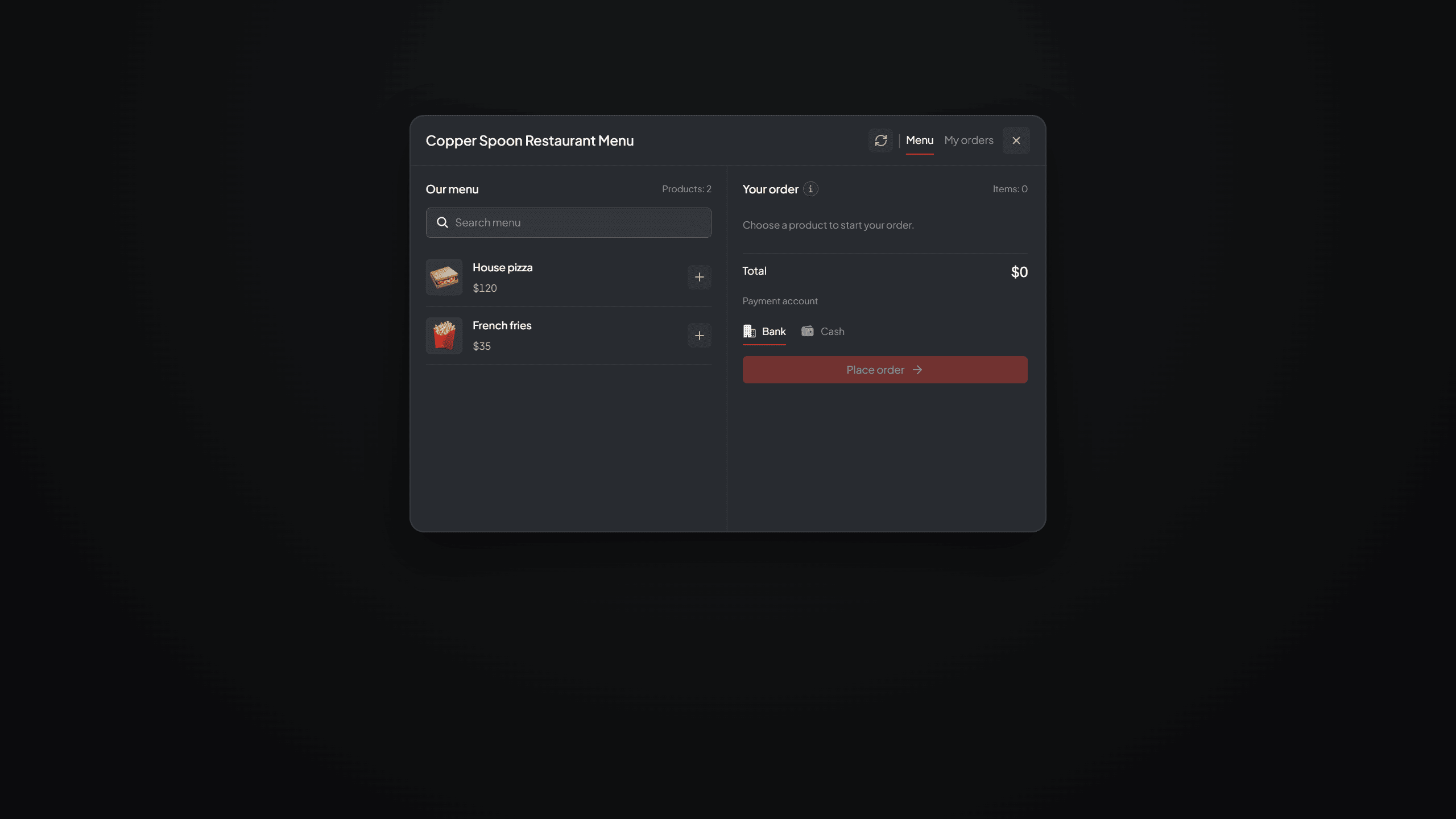
Customer Menu with product artwork, prices, quantity controls and the current order summary.
The page shows the current public sale catalog. If it is empty, staff should review published finished recipes and Products & pricing. A nearby public food prop is not proof that a product is currently for sale.
2. Choose products and quantities#
Add the intended products with their quantity controls. Review every line and the total in Your order. Remove extra products before checkout. A product picture is presentation; the saved order's logical item and quantity determine fulfillment.
The server enforces its current limits and catalog. If staff changed availability or prices while you were browsing, refresh/reopen and review the new total rather than repeatedly submitting the stale selection.
3. Choose a payment account and place the order#
Choose the offered cash or bank account and use Place order. Cash follows the selected inventory currency path; bank uses the selected framework account. A shortage does not silently fall back to the other account.
checkout2 revalidates the current point, restaurant, catalog and payment readiness. Wait for a confirmed response and inspect My Orders. A UI timeout is not proof that no money was taken. Check the existing order/payment state before attempting another checkout.
Confirmed money is held in escrow3 while the order awaits acceptance. It becomes recognized restaurant revenue when staff accept the confirmed paid order. Checkout does not automatically cook products or reserve finished stock.
4. Follow My Orders#
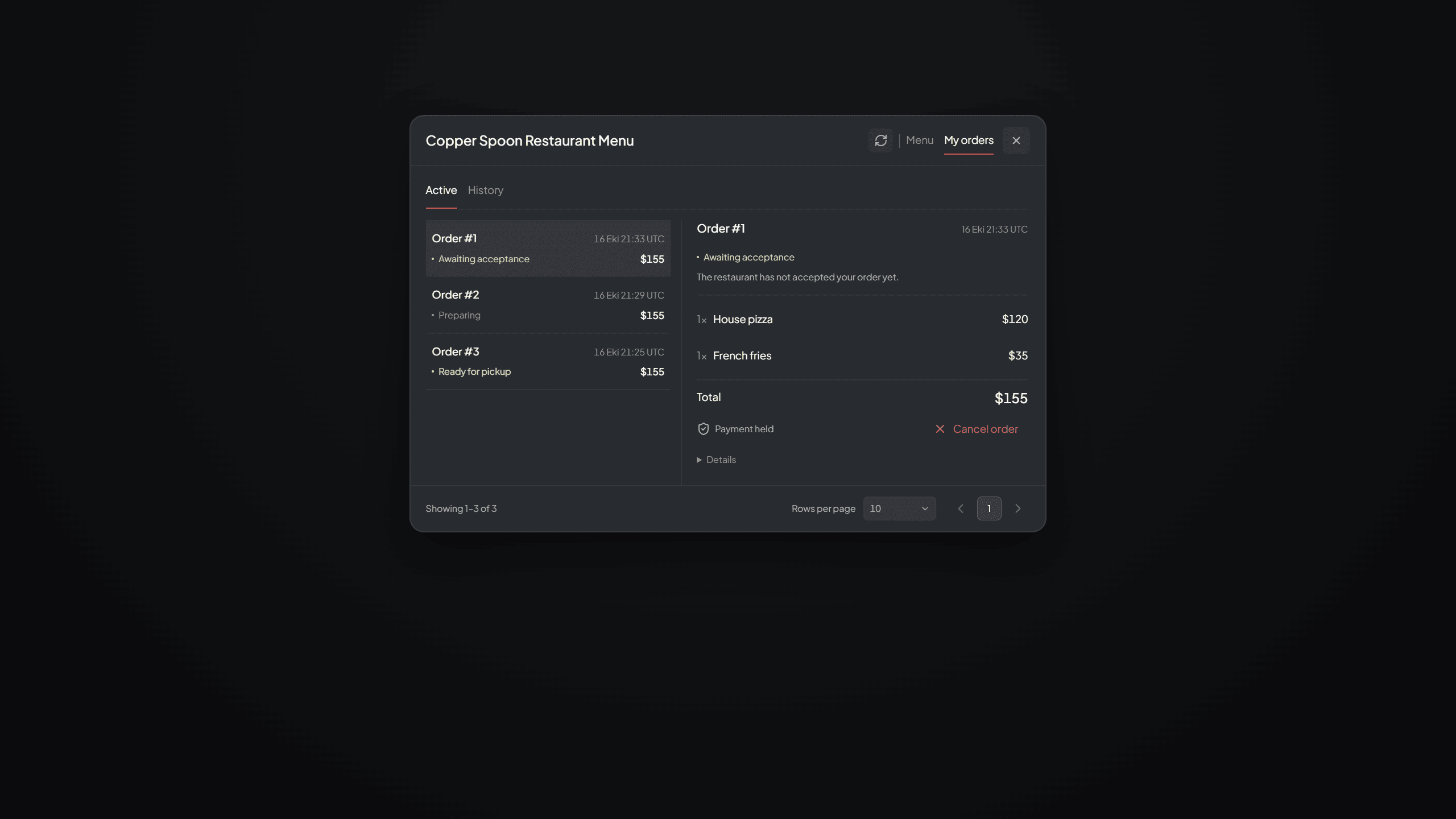
My Orders with active/history navigation, selected order details, payment status and available customer action.
Open My Orders, select Active or History and open the desired order. It shows the current status, saved contents, payment state and permitted actions. Use Refresh after an external change; these views do not continuously poll in the background.
| State | What the customer should understand |
|---|---|
| Awaiting acceptance | Staff have not accepted the order yet |
| Accepted / Preparing | The restaurant has taken responsibility and is working on it |
| Packed | Contents are assigned, but pickup approval is still needed |
| Ready for pickup | Eligible pickup can transfer the actual reserved bags |
| Staff hand delivery | Staff have custody; confirm only after receiving the order |
| Delivered | The order is completed |
| Cancelled / Rejected | Review payment/refund state separately |
Cancel or collect when permitted#
Before staff acceptance, an eligible customer cancellation starts the original-account refund flow. Accepted orders have no general cancellation/refund feature. A pending refund can remain queued while the original character is offline or a provider is unavailable.
For pickup, use the same customer character at the current Menu Location and ensure inventory space for all bags. For staff delivery, use I received it only after the real handover. That acknowledgement records delivery; it does not create another item or payment.
See Delivery and Refunds. If the result cannot be confirmed, record the order/payment reference and follow Recovery.
Footnotes
-
A published point where customers open that restaurant's menu and their order view. Read the definition. ↩
-
The customer action requesting an order and payment using the current published menu. Read the definition. ↩
-
Customer money held while a paid order is waiting for staff acceptance. Read the definition. ↩